

Remove Image Backgrounds in Seconds With the AI Background Remover
One click, clean edges, transparent PNG
The AI Background Remover strips the background from any photo in about three seconds and hands you a transparent PNG — no selecting, no masking, no Photoshop. Upload an image, and the AI Background Remover keeps hair, fur, and fine edges intact while everything behind your subject drops away. It runs in your browser on Super Banana Pro, free to try with your signup credits.
- Removes the background in about three seconds
- One click — no masking or settings to fiddle with
- Clean soft edges keep hair and fine detail
- Transparent PNG output, ready to drop anywhere
- Accepts PNG, JPG, and WebP uploads
- 1 credit per image — free to try with signup credits

Why Use the AI Background Remover
Upload an image, get a clean transparent-PNG cutout in seconds — one click, no manual masking.
The AI Background Remover is built for the everyday task of getting a clean cutout fast. You upload a photo, the AI Background Remover detects the subject and removes everything behind it, and you download a transparent PNG — typically in about three seconds, with no brushing, masking, or settings to learn. It keeps soft edges like hair and fur intact, runs right in the browser on Super Banana Pro alongside the other image tools, and is free to try with the credits a new account starts with.
| ai background remover online | remove background from image | transparent png background remover | free background remover |
How to Remove a Background in Three Steps
1
Upload Your Image
Drop a photo into the tool — PNG, JPG, and WebP all work. Product shots, portraits, screenshots, and artwork are all fair game.
2
Let the AI Remove the Background
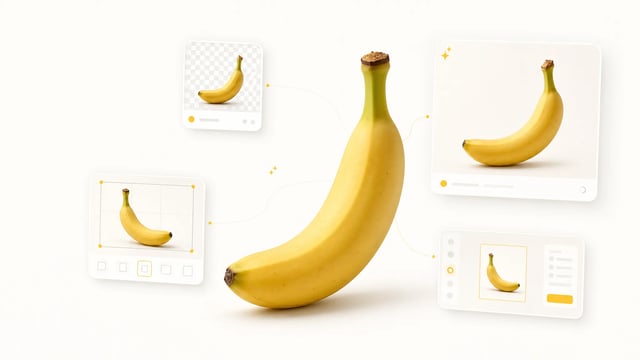
It detects your subject and clears everything behind it automatically — no brushing or masking. Hair, fur, and fine edges stay intact.
3
Download the Transparent PNG
In about three seconds you get a transparent PNG back. Download it and drop it straight into Figma, Canva, a slide, or a product template.
What the AI Background Remover Does Well
Cutouts in About Three Seconds
It returns a finished cutout in roughly three seconds per image — fast enough to clear a whole batch of product shots or social posts in one sitting instead of masking them one by one in an editor.

Clean Soft Edges on Hair and Fur
Soft, translucent edges — hair, fur, and fine strands — survive the cut, instead of the jagged hard outline cheaper tools leave behind. The result looks shot against a clean background, not crudely chopped out.

Transparent PNG, Ready to Use
Every result comes back as a transparent PNG, so the cutout drops straight onto any layout, slide, or product mockup with nothing behind it. No extra export step, no white box around your subject.

One Click, Nothing to Configure
Removal is a single action: upload and it runs. There are no thresholds, brushes, or layers to manage, so anyone on the team can get a clean cutout without learning an editor — and the results stay consistent across a batch.

Who Uses the AI Background Remover
E-commerce Sellers
For listings, sellers drop each product onto a clean transparent cutout they can place on any backdrop. Each removal takes about three seconds, so a whole catalog batch finishes in one sitting instead of a half-day of manual masking.
Headshot & Portrait Shooters
Photographers reach for it to swap busy backdrops out of portraits. Soft hair edges survive the cut, so the result looks studio-clean rather than chopped — no green screen rig required.
Social Media Creators
Stickers and overlays for Stories, Reels, and TikTok start life as transparent PNGs, and creators lean on it to cut them fast. Because the output is transparent by default, each cutout is ready for the next layer in seconds.
Print-on-Demand Sellers
Artwork for shirts, mugs, and stickers needs crisp transparent edges, so print-on-demand sellers run it before sending files to print. The printed result keeps the original linework instead of a stray background fringe.
Designers & Marketers
Before composing banners, decks, and ads in Figma or Canva, designers use it to lift subjects out cleanly. The transparent cutout drops onto the destination canvas without a separate Photoshop detour.
Founders & Solo Builders
Founders rely on it for quick launch and pitch visuals — a clean product or headshot cutout for a landing page or slide — without paying for a designer or a separate subscription.
Frequently Asked Questions About the AI Background Remover
What is the AI Background Remover?
The AI Background Remover is a one-click tool on Super Banana Pro that detects the subject in a photo, removes everything behind it, and returns a transparent PNG — typically in about three seconds, with no masking or manual selection.
How fast is the AI Background Remover?
It usually returns a finished cutout within about three seconds per image, so batches of product photos, headshots, or social posts run in seconds rather than the minutes manual masking takes.
What format does the AI Background Remover output?
It returns a transparent PNG, so your subject drops onto any background, layout, or mockup with nothing behind it. No extra export step is needed before you use the cutout.
Can I get a white or colored background instead?
It outputs a transparent PNG rather than painting in a solid color, so there's no white- or colored-background mode to choose. To get one, drop the transparent cutout onto any color or background in your editor — Figma, Canva, or a slide — and place it on the fill you want.
Does the AI Background Remover handle hair and fine detail?
Yes. It preserves soft, translucent edges like hair, fur, and fine strands, so the cutout looks clean rather than hard-chopped — the kind of edge cheaper one-click removers usually mangle.
What images can I upload to the AI Background Remover?
It accepts PNG, JPG, and WebP images. Product shots, portraits, screenshots, and artwork all work; upload the photo and the removal runs automatically.
Is the AI Background Remover free to use?
You can try it with the free starter credits a new Super Banana Pro account includes; each removal costs one credit. The free daily image runs on Nano Banana 2, not this tool — for higher volume, top up with a credit pack or a paid plan. Failed runs refund automatically.
Can I use the cutouts commercially?
Commercial use requires a paid plan. On a paid plan you own your cutouts and may use them in listings, ads, print-on-demand, and client work; free-plan output is for personal, non-commercial use. See the legal page for the exact terms, and clear any third-party rights in your source image yourself.
Are my uploaded images kept private?
Your uploads are used only to run the background removal you request. Results save to your private asset library on Super Banana Pro, where you can re-download or delete them; the legal page lists the exact data terms.
Remove a Background in Seconds — Free to Try
Upload an image and the AI Background Remover returns a clean transparent PNG in about three seconds. Free to try with your Super Banana Pro signup credits.