Limited-Time 50% OFF!Get Offer

Edit Any Image With a Prompt Using GPT Image 2

OpenAI's prompt-driven image editor

GPT Image 2 is OpenAI's image model with full image-to-image editing. Upload a photo, describe the change in plain language, and GPT Image 2 edits it — restyle the look, swap the background, replace or remove an element, or extend the scene — while keeping the parts you wanted to keep. Run GPT Image 2 in your browser on Super Banana Pro at 1K, 2K, and 4K, with no OpenAI account required.

  • Upload a photo and edit it by prompt
  • Swap backgrounds, replace or remove elements
  • Restyle a photo while keeping the subject
  • Extend and reframe the scene to any ratio
  • Fix or add readable in-image text
  • Export edits at 1K, 2K, and 4K
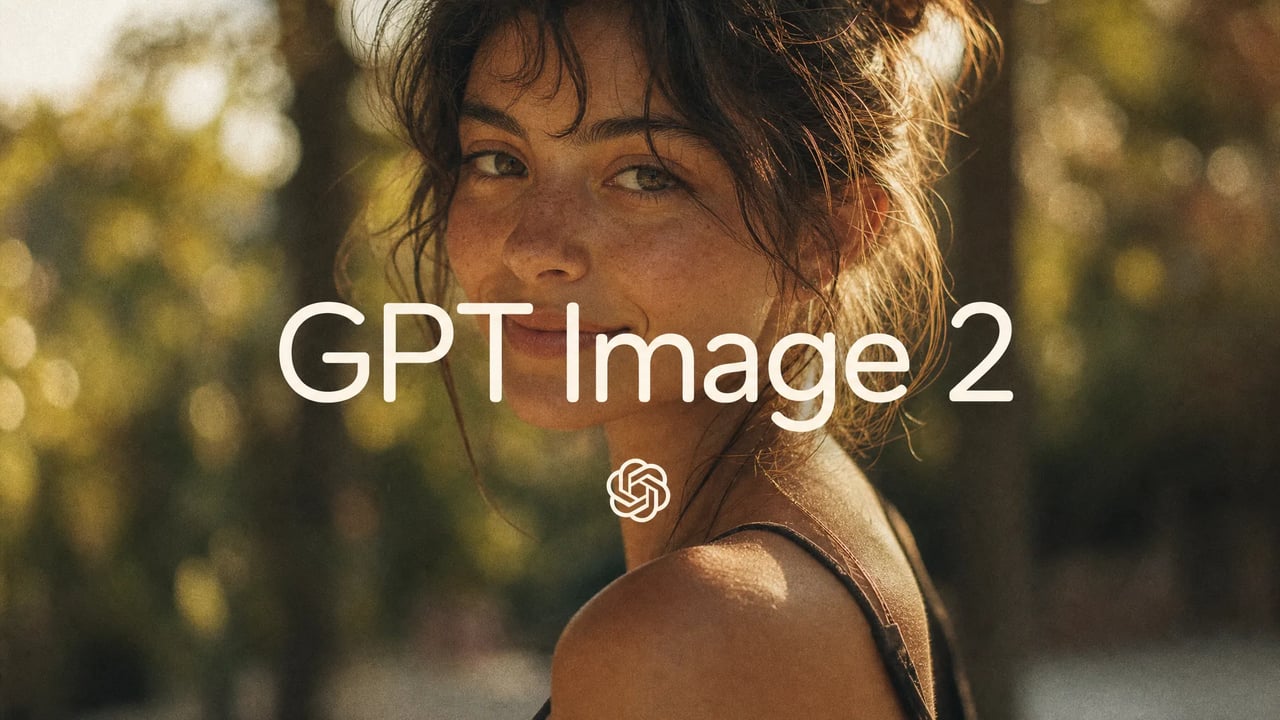
GPT Image 2 by OpenAI — cinematic hero with the OpenAI emblem
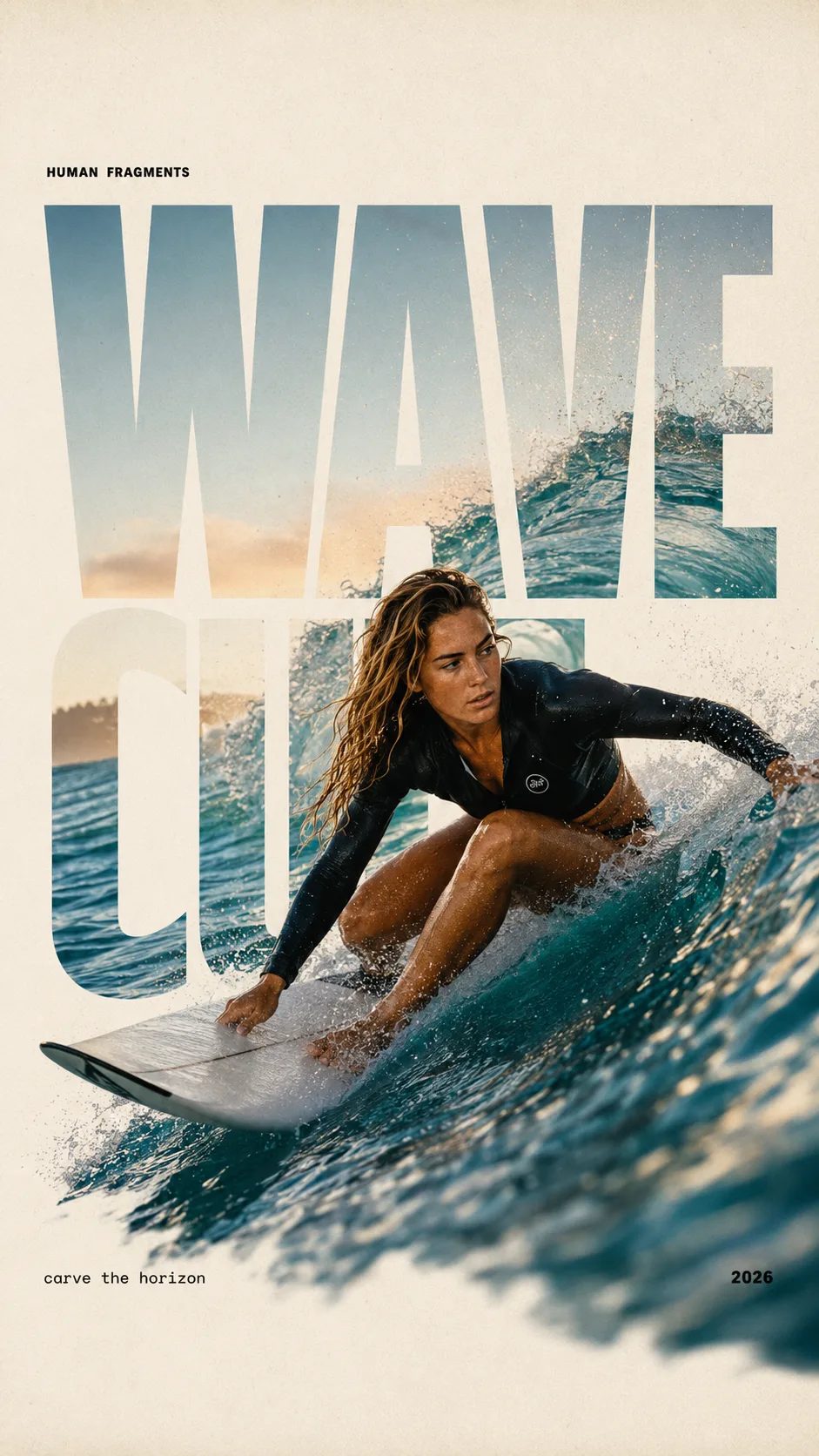
HUMAN FRAGMENTS editorial poster sample

Create a 9:16 editorial poster in the HUMAN FRAGMENTS visual system. Theme: [surfing / basketball / boxing / cake decorating] Subject: [gender, age, appearance, outfit] Action: [specific movement or handcraft] Scene: [location and environment] Title: [custom two-word title] Supporting line: [one short phrase] Year: 2026 Use oversized cropped typography as the main structural framework. The letters should act as windows that reveal the surrounding environment, while the main person remains visually complete in front of the type. Do not let the letters cut through the face, torso, arms, thighs, or other important parts of the body. Let one key action element break beyond the typography to create strong depth: 1. WAVE CUT — a surfer carving across a rising wave, with the board nose, hand, water spray, and curled wave breaking outside the letters. 2. RIM RISE — a basketball player reaching toward the hoop from a camera placed above the rim, with the basketball, hand, and hoop fully outside the letter masks and aligned naturally. 3. IMPACT FRAME — a boxer throwing a straight punch toward the camera, with the foreground glove enlarged and breaking beyond the typography while the gym remains inside the letters. 4. SOFT SWIRL — a graceful young woman decorating a cake, with the piping bag, hands, cake, and cream details extending beyond the letters while the bakery interior appears inside the type. Use realistic photography, believable anatomy, natural skin texture, strong foreground perspective, subtle paper grain, a warm off-white background, restrained colors, and clean editorial spacing. Keep the text minimal and freely placed: [Title] HUMAN FRAGMENTS [Short supporting line] 2026

What GPT Image 2 Image Editing Does

Upload an image, describe the edit in words, and get an edited image back — image-to-image powered by OpenAI's model.

GPT Image 2 is OpenAI's image model, and on Super Banana Pro you use it as a prompt-driven image editor. Instead of learning a layers-and-masks tool, you upload the image you want to change and describe the edit in plain language — "put this product on a marble counter," "make it a winter scene," "remove the person on the left," "extend this into a wide banner." It edits image-to-image: it keeps the subject and details you want to preserve and changes only what you described, then returns the result to download. You can edit at 1K, 2K, or 4K and keep iterating on the same image. Every version saves to your asset library, so refining an edit stays cheap and reversible.

| gpt image 2 image editor | edit image with ai | ai image editor | edit photo with prompt |

How to Edit an Image With GPT Image 2 in Four Steps

1

Upload the Image You Want to Edit

Switch GPT Image 2 to image-to-image and upload the photo, screenshot, or graphic you want to change. Starting from scratch instead? Use text-to-image and describe the picture from a prompt.

2

Describe the Edit in Plain Language

Tell GPT Image 2 what to change — swap the background, restyle the look, replace or remove an element, extend the frame, or fix the text. Be specific; it follows a detailed instruction and leaves the rest of the image intact.

3

Set Resolution and Aspect Ratio

Choose 1K for a quick pass or 2K and 4K for finished, high-resolution output, and set the aspect ratio for your channel. GPT Image 2 holds the edit's detail as the resolution scales up.

4

Generate, Compare, and Download

GPT Image 2 returns the edited image to review against your original. Download it or refine your prompt and run again — every version saves to your asset library, and failed runs refund credits automatically.

Core Image-Editing Capabilities of GPT Image 2

Background & Object Editing

Tell GPT Image 2 to swap a background, drop in a new setting, or replace and remove objects. Because it edits image-to-image, the subject you kept stays consistent while the background or object changes — so a product or portrait moves into a new scene without looking pasted on.

GPT Image 2 swapping the background of an uploaded product photo

Restyle Without Losing the Subject

Restyle a photo — change the season, lighting, art style, or mood — and GPT Image 2 keeps the recognizable subject intact instead of regenerating an unrelated image. Iterate on the look while the thing you photographed stays the thing in the result.

The same photo restyled by GPT Image 2 with the subject preserved

Extend & Reframe the Scene

Hand GPT Image 2 a crop that's too tight and ask it to extend the scene — turn a square into a wide banner or add headroom — and it paints believable surroundings that match the original. Reframe one source image for every channel.

GPT Image 2 extending a tight crop into a wide banner

Edit and Add Readable Text

Readable in-image text is a GPT Image 2 strength, and it carries into editing: fix a typo on a poster, swap a headline, or add a clean label to a product shot — and the new copy renders legibly instead of as garbled lettering.

GPT Image 2 swapping the headline text on an edited poster
Why Edit With GPT Image 2

Why Edit With GPT Image 2?

Edit in Plain Language

Edit in Plain Language

No layers, masks, or tools to learn

Traditional editors make you learn selections, layers, and masks. With GPT Image 2 you describe the change in a sentence and it does the work, so anyone can make a real edit without an editing background — and a complex, multi-part edit is just a longer instruction.

Edit, Don't Regenerate

Edit, Don't Regenerate

Image-to-image keeps what you like

Regenerating a whole image to fix one thing wastes the parts that were already right. GPT Image 2 edits your upload in place and changes only what you described, so iteration is additive, not destructive.

Text That Survives the Edit

Text That Survives the Edit

Headlines and labels stay legible

Most models turn edited text into noise. GPT Image 2 renders readable words, so you can change a headline or add a label and ship the result instead of re-typesetting it afterward.

OpenAI's Model, No Account Hassle

OpenAI's Model, No Account Hassle

Run GPT Image 2 on Super Banana Pro

Editing with GPT Image 2 elsewhere means another account and setup. On Super Banana Pro you edit in the browser alongside every other model, with your versions in one asset library and no separate sign-up.

Primary Applications for GPT Image 2 Image Editing

E-commerce & Product Teams

Drop a product onto a clean studio backdrop or a lifestyle scene, recolor a variant, or fix on-pack text — GPT Image 2 turns one product shot into a full listing set without a reshoot.

Photo Editors & Retouchers

Photo editors restyle, extend, and clean up client photos with GPT Image 2's image-to-image editing — it changes only what you asked and keeps the subject recognizable, so an edit looks intentional rather than regenerated.

Marketers & Ad Designers

Take one hero image and edit it into every placement — reframe to each aspect ratio, swap the headline, change the background — so a whole campaign ships from a single source image.

Social & Content Creators

Turn one photo into a week of posts with GPT Image 2: change the scene, restyle for each platform, and add legible captions baked into the image — all in the browser.

Designers & Art Directors

Iterate on a concept image — adjust composition, replace elements, extend the canvas — while the parts the brief locked in stay put, so revisions stay controlled instead of random.

Real Estate & Listings

Brighten and restyle a room, declutter a space, or extend a too-tight listing shot, so a property reads its best without a return visit.

Frequently Asked Questions About GPT Image 2 Image Editing

What can GPT Image 2 edit in an image?

Upload an image and describe the change: GPT Image 2 can swap or restyle the background, replace or remove an element, change the season, lighting, or art style, extend and reframe the scene, and fix or add readable in-image text. It edits image-to-image, so it changes what you describe and keeps the rest of the image intact.

Do I need masks or selections to edit with GPT Image 2?

No. GPT Image 2 is prompt-driven: you describe the edit in plain language instead of making selections or masks. Upload the image, type what to change, and generate. To target a region, name it in words — for example "the sky" or "the person on the right."

Should I use GPT Image 2 or a dedicated tool like the Background Remover?

Use the one-click tool when your task is exactly that one job — the Background Remover for a clean cutout, the Image Extender to outpaint, the Image Upscaler to enlarge. Reach for GPT Image 2 when you want to describe an open-ended or multi-part change in your own words. They all live on Super Banana Pro, so you can chain them on the same image.

Can GPT Image 2 also generate images from text?

Yes. GPT Image 2 runs both text-to-image and image-to-image. Start from a prompt to create a new image, or upload one to edit — switch modes in the workspace before you generate.

What resolutions and aspect ratios does GPT Image 2 support?

GPT Image 2 outputs at 1K, 2K, and 4K, and you pick the aspect ratio in the workspace before you generate. Edit at 1K for a fast pass, then re-run at 2K or 4K for a finished, high-resolution result — GPT Image 2 keeps the edit's detail as the resolution scales up.

Is GPT Image 2 free to use?

You can try GPT Image 2 with the free starter credits you get when you create a Super Banana Pro account; it costs credits per image, so larger volumes use a paid plan. The free daily run is on Nano Banana 2, not GPT Image 2. Failed runs refund automatically — see the pricing page for current credit costs across resolutions.

Can I use my edited images commercially?

Yes. Images you create and edit with GPT Image 2 come with a commercial-use license on paid plans — use them in listings, ads, and client work once your plan covers commercial use. The legal page has the exact terms.

Do I need an OpenAI account to edit with GPT Image 2?

No. Super Banana Pro runs GPT Image 2 for you, so you edit in the browser with a Super Banana Pro account — no OpenAI sign-up, key, or setup — and your edited versions save to your private asset library.

Start Editing With GPT Image 2 Today

Upload a photo, describe the change, and edit it by prompt at 1K to 4K — run OpenAI's GPT Image 2 image editor in your browser on Super Banana Pro.